
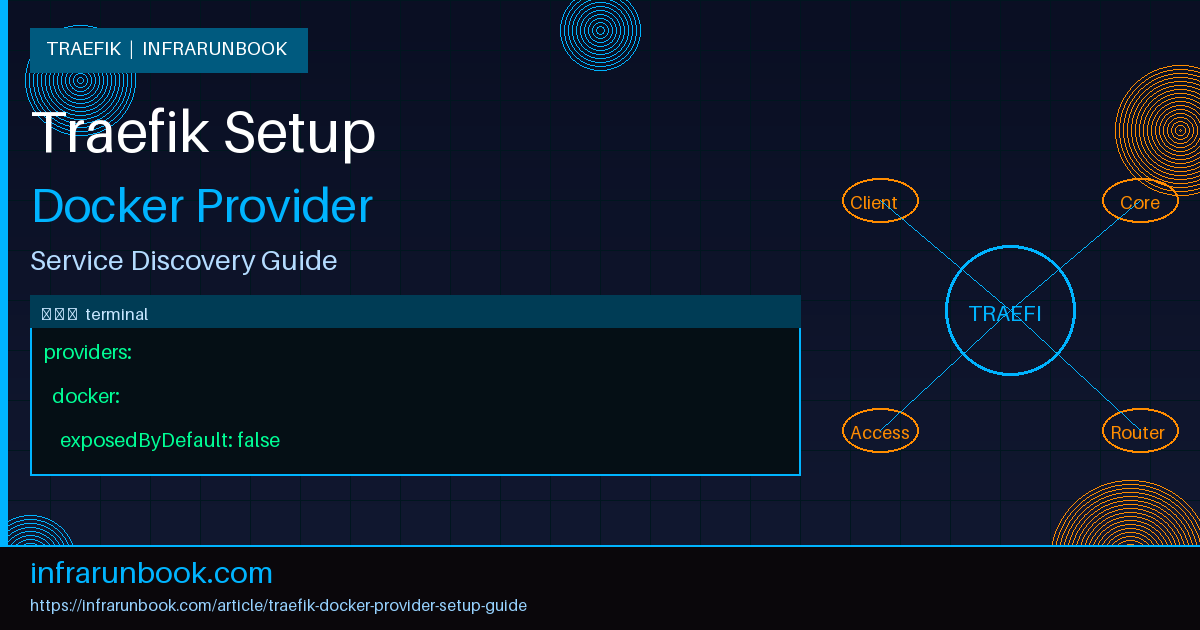
I've set up Traefik's Docker provider on more hosts than I can count at this point, and the pattern of mistakes is remarkably consistent. People get the container running, the dashboard loads, and then nothing routes. Or worse, everything routes, including containers they never meant to expose. This guide walks through a setup that avoids both problems, with a configuration I'd actually deploy on a production host like sw-infrarunbook-01.
The Docker provider is what makes Traefik interesting in the first place. Instead of hand-editing a static config every time you deploy a new service, Traefik watches the Docker socket (or the Docker API over TCP) and builds its routing table from container labels. Add a container with the right labels, and it's routable within seconds. Remove it, and the route disappears. No reloads, no restarts.
Prerequisites
Before you touch a config file, make sure you actually have these pieces in place. Skipping this step is the number one reason people end up debugging a "broken" Traefik setup that was never going to work.
- Docker Engine and Docker Compose installed on the host (I'll assume Compose v2 syntax throughout).
- A host with a static internal IP, for example 192.168.1.50, if you're running this in a home lab or internal network rather than behind a cloud load balancer.
- Basic familiarity with how Docker networks work — bridge networks specifically, since that's how Traefik will reach your backend containers.
- Ports 80 and 443 free on the host, or whichever entrypoints you plan to use.
- If you want automatic TLS, a domain you control with DNS pointed at the host. I'll use solvethenetwork.com in the examples below.
One thing I always check before starting: does anything else already bind to port 80? Apache, Nginx, another proxy left over from a previous project — I've lost an hour more than once to a stale Nginx instance quietly holding port 80 while I stared at Traefik logs looking for the wrong bug.
Step-by-step setup
Start with the directory structure. I like to keep Traefik's static configuration, dynamic configuration, and ACME storage separate from the compose file itself, since it makes bind mounts predictable and easy to back up.
mkdir -p /opt/traefik/{config,acme}
touch /opt/traefik/acme/acme.json
chmod 600 /opt/traefik/acme/acme.json
That chmod matters more than it looks. Traefik will refuse to use the ACME storage file if its permissions are too open, and it will fail silently in a way that just looks like certificates never getting issued.
Next, create the static configuration file. This is where you define entrypoints and enable the Docker provider itself — this file rarely changes once it's set.
/opt/traefik/config/traefik.yml

api:
  dashboard: true

entryPoints:
  web:
    address: ":80"
    http:
      redirections:
        entryPoint:
          to: websecure
          scheme: https
  websecure:
    address: ":443"

providers:
  docker:
    endpoint: "unix:///var/run/docker.sock"
    exposedByDefault: false
    network: traefik-public

certificatesResolvers:
  letsencrypt:
    acme:
      email: infrarunbook-admin@solvethenetwork.com
      storage: /acme.json
      httpChallenge:
        entryPoint: web
Notice
exposedByDefault: false. This is the single most important line in that file, and it's the one people skip because the getting-started examples online often leave it out or set it to true. With it false, Traefik will only create routes for containers that explicitly opt in with a
traefik.enable=truelabel. Without it, every container on the host with a Docker network attached becomes a potential route the moment it starts. In my experience that's how internal admin panels and databases end up reachable from the internet — nobody labeled them, but nobody needed to, because exposure was the default.
Now create the shared network that Traefik and your backend services will use to talk to each other.
docker network create traefik-publicNext, write the compose file for Traefik itself.
/opt/traefik/docker-compose.yml

services:
  traefik:
    image: traefik:v3.1
    container_name: traefik
    restart: unless-stopped
    security_opt:
      - no-new-privileges:true
    networks:
      - traefik-public
    ports:
      - "80:80"
      - "443:443"
    volumes:
      - /var/run/docker.sock:/var/run/docker.sock:ro
      - ./config/traefik.yml:/traefik.yml:ro
      - ./acme/acme.json:/acme.json
    command:
      - "--configFile=/traefik.yml"
    labels:
      - "traefik.enable=true"
      - "traefik.http.routers.dashboard.rule=Host(`traefik.solvethenetwork.com`)"
      - "traefik.http.routers.dashboard.service=api@internal"
      - "traefik.http.routers.dashboard.entrypoints=websecure"
      - "traefik.http.routers.dashboard.tls.certresolver=letsencrypt"

networks:
  traefik-public:
    external: true
A couple of details worth calling out here. The Docker socket is mounted read-only —
:ro. Traefik only needs to read container metadata, it never needs to start or stop containers, so there's no reason to grant write access to the socket. I've seen setups mount it read-write out of habit copied from some blog post, which just widens the blast radius if Traefik itself is ever compromised.
Also notice the dashboard router uses
api@internalas its service, not a normal backend service. That's a Traefik-specific convention for exposing the built-in API and dashboard through the same routing mechanism as everything else. If you skip the
traefik.enable=truelabel on the Traefik container itself, the dashboard router won't be created at all, because remember — exposedByDefault is false, and that applies to every container, including Traefik.
Bring it up:
cd /opt/traefik
docker compose up -d
docker compose logs -f traefik
Watch the logs for a moment. You should see the Docker provider initialize and, if DNS is already pointed at the host, an ACME certificate request for traefik.solvethenetwork.com.
Full configuration example
Here's what a real backend service looks like once Traefik is running. Say you're deploying an internal application on sw-infrarunbook-01 and want it reachable at app.solvethenetwork.com.
/opt/apps/sample-app/docker-compose.yml

services:
  app:
    image: infrarunbook-admin/sample-app:latest
    container_name: sample-app
    restart: unless-stopped
    networks:
      - traefik-public
    expose:
      - "8080"
    labels:
      - "traefik.enable=true"
      - "traefik.http.routers.sample-app.rule=Host(`app.solvethenetwork.com`)"
      - "traefik.http.routers.sample-app.entrypoints=websecure"
      - "traefik.http.routers.sample-app.tls.certresolver=letsencrypt"
      - "traefik.http.services.sample-app.loadbalancer.server.port=8080"

networks:
  traefik-public:
    external: true
A few things I want to point out because they're easy to get wrong. First, use
expose, not
ports. You don't want the application container binding directly to the host's network interface — Traefik reaches it over the internal Docker network, so publishing the port to the host just opens an unnecessary second path into the container that bypasses Traefik entirely, including any middleware you've configured.
Second, the
loadbalancer.server.portlabel. Traefik can usually infer the port automatically if the container only exposes one port, but I set it explicitly anyway. It costs nothing, and it saves you from a subtle failure mode where a container with multiple exposed ports gets routed to the wrong one.
If you want to add basic auth or IP allowlisting to an internal service, middleware labels stack cleanly on top of this:
- "traefik.http.middlewares.internal-only.ipallowlist.sourcerange=10.0.0.0/8,192.168.0.0/16"
- "traefik.http.routers.sample-app.middlewares=internal-only"
Verification steps
Don't just assume it works because the containers are running. Check it properly.
Start with the dashboard. Navigate to https://traefik.solvethenetwork.com and confirm you can see the router list, and that sample-app shows up with a green status. If it's red, click into it — Traefik will usually tell you exactly why, most often a DNS mismatch or a network the container isn't actually attached to.
From the command line, confirm the container is on the right network:
docker network inspect traefik-publicBoth the Traefik container and sample-app should appear in the Containers section. If sample-app is missing, check that its compose file references the network as external and that the network name matches exactly — a typo here fails silently, the container just starts on its own default network instead of erroring out.
Test the route directly:
curl -v https://app.solvethenetwork.comYou want to see a valid TLS handshake and a response from your application, not a 404 from Traefik itself. A 404 from Traefik means the router rule didn't match — check the Host() value against what you're actually requesting, capitalization and backticks included.
Finally, check the ACME storage to confirm the certificate was actually issued and isn't sitting in a pending state:
docker exec traefik cat /acme.json | grep -A2 solvethenetworkCommon mistakes
I keep seeing the same handful of issues across different teams and different setups, so it's worth calling them out directly.
Leaving
exposedByDefaultunset or true. This is the one that actually causes security incidents, not just annoyance. Every container becomes routable the second it joins a network Traefik can see. Set it to false and require the label explicitly, every time.
Mounting the Docker socket read-write. Traefik never needs to write to the socket. Mount it
:roand move on.
Forgetting the container needs to be on the same Docker network as Traefik. This produces a router that appears in the dashboard but times out on every request, because Traefik can resolve the rule but can't actually reach the backend container over the network layer.
Publishing ports on the backend service in addition to using Traefik. This defeats the entire purpose of the setup — you end up with two paths into the same service, one governed by Traefik's middleware and TLS termination, and one wide open on the host's network interface.
Chmod on acme.json being too permissive, or worse, the file being a directory instead of a file because Docker auto-created it as one when the bind mount source didn't exist yet. Always touch the file before your first
docker compose up.
And the quieter one: not pinning the Traefik image tag. I've watched a routing table shift after an unplanned upgrade because someone was running
traefik:latestin production. Pin the version, test the upgrade in a lower environment, and move it forward deliberately.