
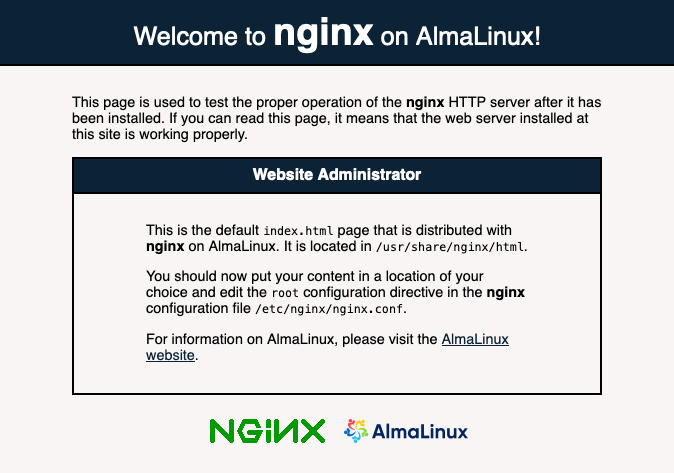
Setting up a basic website on a Linux server is one of the most common real-world tasks for system administrators, DevOps engineers, and developers. Among all web servers available today, Nginx is widely preferred because of its speed, stability, and ability to handle traffic efficiently—even on low-resource servers.
In this article, we’ll walk through setting up a basic website using Nginx on Ubuntu, using infrarunbook.com as the example domain throughout. The guide is written in a practical, human way, covering proper configuration, directory structure, firewall rules, permissions, and troubleshooting steps you’re likely to face in real environments.
This guide assumes:
- You are using Ubuntu (20.04 / 22.04 or later)
- You have sudo access
- You want a clean, maintainable, and production-ready setup
Before We Begin: Make Sure Nginx Is Installed
If Nginx is not already installed, you should complete the installation first.
Refer to our detailed installation guide here:
That article covers installation, service management, firewall basics, and verification. Once Nginx is installed and running, come back here and continue.
How Nginx Serves a Website (Quick Overview)
Understanding how Nginx works internally makes configuration and troubleshooting much easier.
At a high level:
- Nginx listens on ports (usually 80 and 443)
- A server block decides how requests are handled
- Each server block points to a document root
- Files in the document root are served to users
- File permissions control access
Keeping this flow in mind will help you diagnose issues quickly later.
Step 1: Create the Website Directory Structure
By default, Nginx serves content from:
/var/www/html
For a clean setup, each website should have its own directory.
Since we are setting up infrarunbook.com, let’s create a dedicated directory.
sudo mkdir -p /var/www/infrarunbook.com/public_html
Why This Structure Is Recommended
- Keeps sites organized
- Makes permission management easier
- Prevents accidental file overlap
- Scales well when hosting multiple sites
Step 2: Set Correct Ownership and Permissions
Incorrect permissions are one of the most common causes of Nginx errors.
Set Ownership and Permissions
Recommended permissions:
- Directories:
755
- Files:
644
sudo chown -R www-data:www-data /var/www/infrarunbook.com
sudo find /var/www/infrarunbook.com -type d -exec chmod 755 {} \;
sudo find /var/www/infrarunbook.com -type f -exec chmod 644 {} \;
⚠️ Even if files look correct, missing execute permission on a parent directory can cause a 403 Forbidden error.
Step 3: Create a Basic Website Page
Let’s create a simple
index.htmlfile.
sudo nano /var/www/infrarunbook.com/public_html/index.html
Paste the following content:
<!DOCTYPE html>
<html>
<head>
<title>Welcome to InfraRunBook</title>
</head>
<body>
<h1>InfraRunBook is Live!</h1>
<p>This website is successfully served using Nginx on Ubuntu.</p>
</body>
</html>
Save and exit. After saving the file, explicitly verify permissions:
ls -l /var/www/infrarunbook.com/public_html/index.html
Expected output:
-rw-r--r-- 1 www-data www-data index.html
If not correct, fix it manually:
sudo chmod 644 /var/www/infrarunbook.com/public_html/index.html
sudo chown www-data:www-data /var/www/infrarunbook.com/public_html/index.html
Step 4: Create an Nginx Server Block for infrarunbook.com
Server blocks tell Nginx which site to serve and how.
Create the Configuration File
sudo nano /etc/nginx/sites-available/infrarunbook.com
Add the following configuration:
server {
listen 80;
server_name infrarunbook.com www.infrarunbook.com;root /var/www/infrarunbook.com/public_html;
index index.html index.htm;access_log /var/log/nginx/infrarunbook.com.access.log;
error_log /var/log/nginx/infrarunbook.com.error.log;location / {
try_files $uri $uri/ =404;
}
}
What Each Directive Does
listen 80
– Accepts HTTP trafficserver_name
– Domain names handled by this siteroot
– Location of website filesindex
– Default files to loadtry_files
– Prevents incorrect routing and directory listing
This configuration is minimal, clean, and production-safe.
Step 5: Enable the Website
Enable the site by creating a symbolic link:
sudo ln -s /etc/nginx/sites-available/infrarunbook.com /etc/nginx/sites-enabled/
Disable the default Nginx site (recommended):
sudo rm /etc/nginx/sites-enabled/default
Step 6: Test Nginx Configuration
Before reloading Nginx, always test the configuration.
sudo nginx -t
Expected output:
syntax is ok
test is successful
If there are errors, Nginx will tell you exactly where to fix them.
Reload Nginx:
sudo systemctl reload nginx
Step 7: Configure Firewall (UFW)
Even a perfect Nginx setup won’t work if the firewall blocks traffic.
Allow Nginx Traffic
sudo ufw allow 'Nginx Full'
Or if you only want HTTP for now:
sudo ufw allow 'Nginx HTTP'
Check firewall status:
sudo ufw status
Make sure port 80 & 443 is allowed.
Step 8: Test the Website in Browser
Open a browser and visit:
http://infrarunbook.com
or your server’s public IP.
If everything is correct, you’ll see the InfraRunBook is Live! message.
Common Issues and Troubleshooting
These are real-world problems you are likely to face.
Issue 1: 403 Forbidden Error
Most common issue.
Possible Causes
- Incorrect ownership
- Wrong permissions
- Parent directory access blocked
Fix Checklist
- Files owned by
www-data
- Directories have
755
- Correct
root
path in config
Check error logs:
sudo tail -f /var/log/nginx/infrarunbook.com.error.log
Issue 2: Default Nginx Page Still Appears
Reasons
- Default site still enabled
- New site not linked properly
server_name
mismatch
Fix
ls -l /etc/nginx/sites-enabled/
Only
infrarunbook.comshould be present.
Issue 3: Website Not Loading at All
Checks
sudo systemctl status nginx sudo ss -tulnp | grep :80
Make sure:
- Nginx is running
- No other service is using port 80
- Firewall allows traffic
Issue 4: Changes Not Reflecting
Fix
sudo systemctl reload nginx
Clear browser cache or use a hard refresh (
Ctrl + F5).
Understanding Nginx Logs (Very Important)
Logs are your best debugging tool.
Access Log
/var/log/nginx/infrarunbook.com.access.log
Error Log
/var/log/nginx/infrarunbook.com.error.log
Always check logs before guessing or changing random settings.
Best Practices for Hosting Websites with Nginx
- One website per server block
- Never edit
nginx.conf
unless required - Always test configs before reload
- Keep permissions strict
- Enable HTTPS as the next step
- Maintain clean directory structure
These practices prevent downtime and configuration chaos.
What’s Next?
Now that infrarunbook.com is live on Nginx, your next logical steps are:
- Enable HTTPS with Let’s Encrypt
- Add security headers
- Configure reverse proxy
- Optimize performance
- Add monitoring and logging
Each of these builds on the foundation you’ve just created.
Final Thoughts
Setting up a basic website using Nginx on Ubuntu is simple—but doing it properly makes all the difference. With the right directory structure, permissions, firewall rules, and clean configuration, your site will be stable, secure, and easy to maintain.
If you haven’t installed Nginx yet, make sure to read our installation guide first: